


Welcome to Tech Talents!
In this newsletter, I usually cover real-time talent movements in the LatAm tech ecosystem. But my goal here goes beyond simply highlighting talent by sharing names, experiences, and LinkedIn profiles. It’s also about helping you grow as a professional — whether by facilitating meaningful connections or by sharing tools I’ve found useful.
In fact, I’ve already included several small AI tips in past Tech Talents editions (you can check them all here). Now, I’m experimenting with a new type of post that dives deeper into those ideas and focuses on making your day-to-day work more efficient. I hope you find it helpful.
Without further ado, let’s dive in…
Build it Yourself: AI Deck Reviewer
Short Description: An AI tool that automatically analyzes a deck attached to an email and sends back a structured report.
Requirements: Airtable (Free), Zapier (Free), Gmail (Free)
Use Cases: VCs can use this tool to complement (not replace) their startup meeting preparation or to expedite screening. It’s designed to standardize the process and surface obvious gaps, but human judgment should always come first.
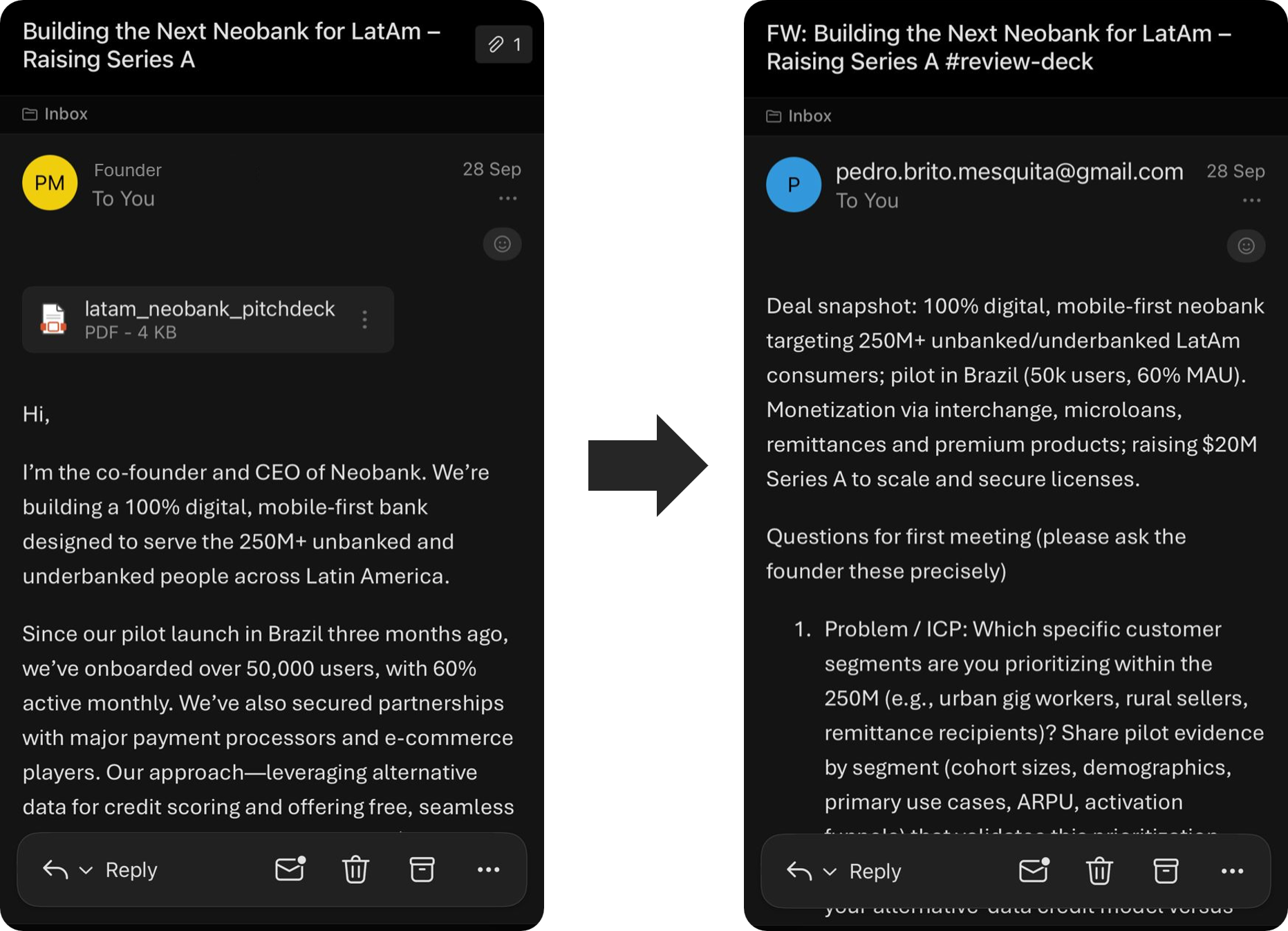
Steps
1) Create a new Gmail label
In Gmail, go to the bottom left corner, where you will find the Labels section. Click the + sign and create a new label (for example, “Decks”). This is where all forwarded emails will be stored.
Then, go to the top search bar and click the Search Options button. Under Subject, add a unique code so Gmail can identify which emails should be processed by the AI (e.g. “#review-deck”). Click Create Filter and apply the label you just created.
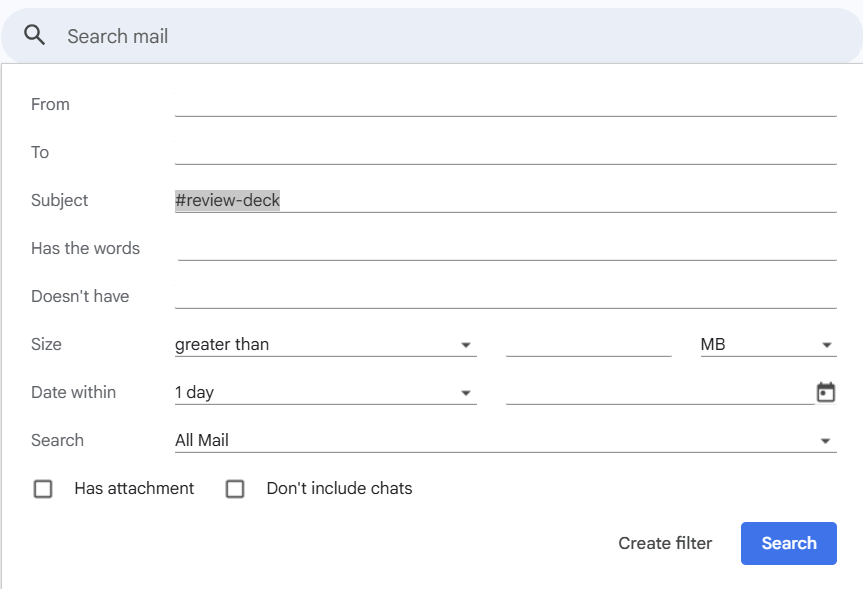
Now, every email you forward with “#review-deck” in the subject will automatically get that label.
2) Create an Airtable table and automation
Create a new table in Airtable with the following fields:
Subject (single line text): stores the subject of the email.
Body (long text, rich text formatting): stores the email body.
Attachment (file): stores the deck (PDF). Add extra attachment fields if you expect multiple files.
Attachment Summary (long text with field agent + automatic run enabled): where the AI report will be stored. Here, you can add whatever prompt works best for you. Here’s a prompt example:
You are assisting a VC with FIRST-MEETING PREP. Generate a concise email draft to the VC listing precise, high-signal questions for a founder, based ONLY on the content below.

Return only formatted email content (no preambles), in the language of the input email body if clearly detectable, otherwise default to English.

== INPUT SNAPSHOT ==
EMAIL BODY:
"Body"

ATTACHMENTS (PDF TEXT):
"Attachment 1"
Next, create an automation in Airtable with two steps:
Trigger: When Attachment Summary is not empty.
Action: Send a Gmail email using the Subject field as the subject line, and the Attachment Summary as the message content.
3) Connect Gmail and Airtable with Zapier
In Zapier, create a new Zap with two steps:
Trigger: Gmail new labeled email as the event.
Action: Create an Airtable record. Map your email content with your Airtable columns, such as subject, body, and attachment. Make sure to use the individual attachments field in Zapier instead of “All Attachments” so Airtable can process the PDF correctly.
Done!
Your automation is ready. Here’s the workflow in one line:
Forward Email with Attachment to Gmail (with Code in the Subject) → Zapier Creates Airtable Record → Airtable AI Processes the Deck → Airtable Automation Sends AI ReportNote: This setup works best for emails with a single attachment. If you want to support multiple attachments, add extra Attachment Summary fields in Airtable. Keep in mind that email signatures sometimes count as attachments — you may need to delete those manually to avoid issues.
If you liked this automation, please let me know by answering the poll below or by replying to this email: